
How to advertise with us - Franchisor
Add A Franchisor Listing
Firstly, ensure that you have logged in to the system then select the Franchisor option from the Advertise With Us page.
Then enter:
- Franchise Title, the franchise name
- Franchise Description, the text/copy you wish visitors to read and become engaged to want to contact you. This could be the same as from your website front page. The field allows standard 'html' markup so copy/pasting from your website would copy all the formatting, for example.

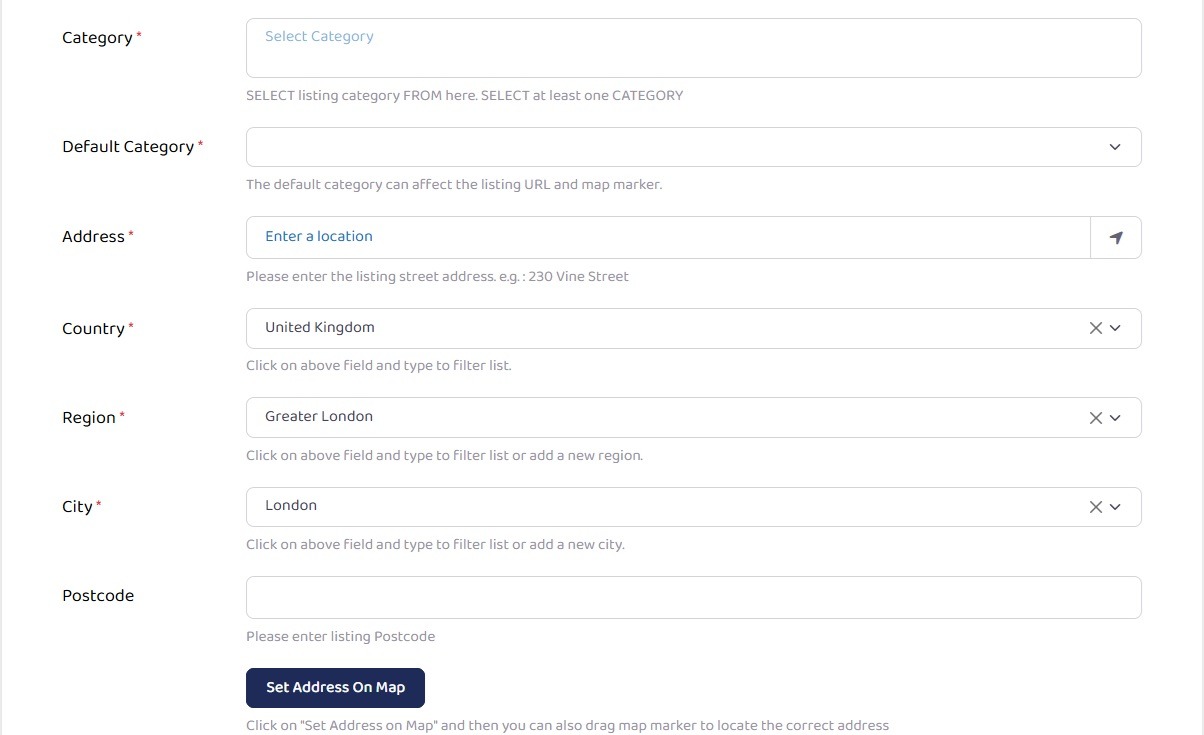
Category and Address
The next options are to enter the main business category and address:
- Category; select from the drop down and select the categories which best suit your business. If none appear to be relevant, or you require another category adding to the list, please do contact us using the contact link on the top menu bar.
- Default Category; select the most appropriate category as this will be the one used in Search Engine Optimisation (SEO) searches of the website.
- Address; self-explanatory, but importantly this is used by Open Street Maps, in combination with Region (County), City (Town) and postcode below to apply the map option to your listing.
- Region; County
- City; or town
- Postcode.
Map
Having entered the Address in the section above, the map should have updated to the correct map. However, if the map is not correctly showing your business address you can enter additional information in the section below to correct this.
Using your favourite search engine search for: "map coordinates" followed by the address. Most providers will have a "Convert/Measure Coordinates" resulting in:
- Latitude coordinate; Lat (OSGB36) N51:04:13 (51.07026449104013) - use the last number without the brackets.
- Longitude coordinate; Long (OSGB36) W4:04:57 (-4.08253259714512) - as above, use the last number without the brackets.
Your business should now show on the map.

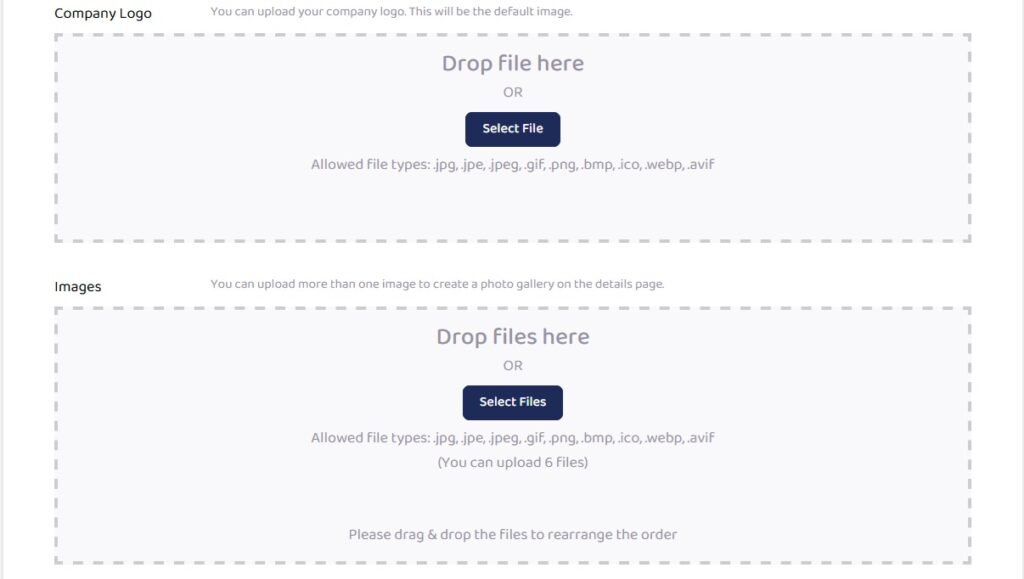
Company Logo and Images
The next section allows you to upload:
- Company Logo; this is the default and will show in the listing, profile tab.
- Images; Any additional images that you feel may be necessary to gain a referral to your business can be uploaded here. They will show in the listing, photo's tab as opposed to on the main listing page.
Contact Information and Social Links
The last section allows you to enter the contact information from your franchise including:
- Email; if you have a separate email for franchise enquiries use this, as opposed to your main email address.
- Phone; please choose the most appropriate number for prospective franchisees to connect with you.
- Website; again, either your main website URL, or the one specifically used to facilitate franchise enquiries.
- Facebook; enter your franchise Facebook URL.
- Instagram; if you have a presence on this medium enter your URL.
Finally select Submit or Preview listing.
You can make any alterations after submitting your listing, using the option from the Account, Profiles menu.
